Skip the reading
Open the Video → MP3 converter
No watermark, no upload, no account. Runs in your browser.
You have a video - a lecture recording, a podcast uploaded to YouTube that someone sent you as a file, a song in an MP4. You want just the audio as an MP3. This guide shows the fastest way to do that in a browser, with no install and no upload, on any device.
TL;DR
- Open converter.encodehive.com/video-to-mp3 in your browser.
- Drop your MP4, WebM, MOV, or MKV onto the drop zone.
- Click Convert to MP3.
- Click Download when it finishes.
No install, no upload, no account, no watermark.
When you’d want to extract audio from a video
The most common cases:
- Lectures and talks. You downloaded a conference recording and want to listen on your commute.
- Podcast episodes uploaded as video. Many podcasters post video versions; pull the audio track to play in a podcast app.
- Music in a video. A band posted a live set - you want the audio on its own.
- Voice-overs. You recorded a video and need the audio as a separate file for editing.
The converter accepts MP4, WebM, MOV, MKV, and AVI. It pulls the existing audio track and re-encodes it as an MP3 at a good bitrate, so quality is close to the original.
A note for “YouTube to MP3” searchers
This tool converts video files you already have on your device. It does not download from YouTube, Vimeo, or any other platform.
If you want audio from a YouTube video, the right approach depends on your situation. If you own the content - for example a video you uploaded yourself - download the file first via YouTube Studio, then drop it here. For content you do not own, check the platform’s terms before downloading anything.
Once you have the video file on your device, this tool handles the MP3 extraction in about 30 seconds.
Extract MP3 from a video, step by step
1. Open the converter
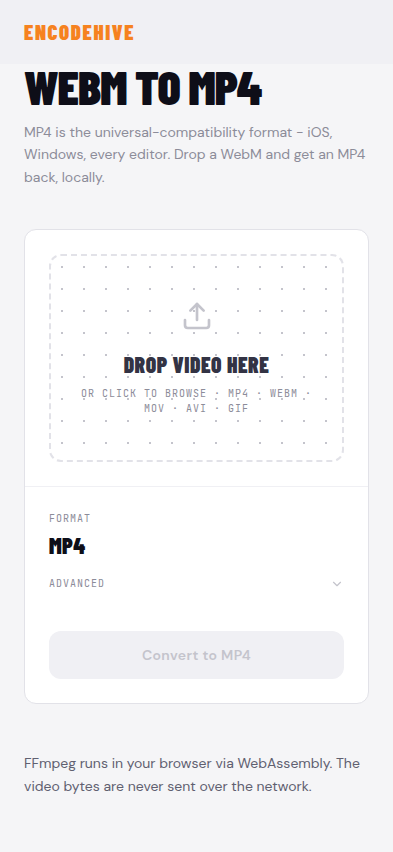
Go to converter.encodehive.com/video-to-mp3 in any browser. The page loads in a second or two. You’ll see a single drop zone in the center of the screen. No signup prompt, no cookie banner.
2. Drop your video file
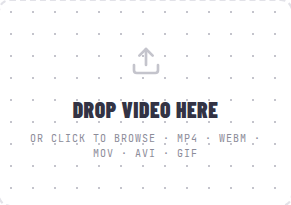
Drag your video onto the dashed drop zone, or click it to open a file picker. The zone accepts MP4, WebM, MOV, MKV, and AVI. If your file is in a different container, try dropping it anyway - it will likely work.
3. Click Convert to MP3
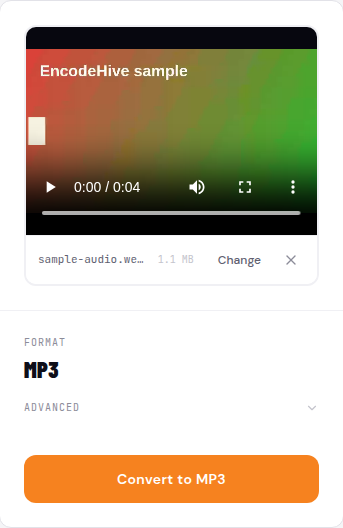
Once the file loads, you’ll see the file name, its size, the output format set to MP3, and an orange Convert to MP3 button. The defaults work well for most audio extraction jobs. Hit Convert to MP3.
A progress bar runs while FFmpeg - compiled to WebAssembly and running inside your browser tab - strips the video stream and encodes the audio. For a 60-minute lecture in MP4, this usually takes 20-60 seconds on a modern laptop.
4. Download the MP3
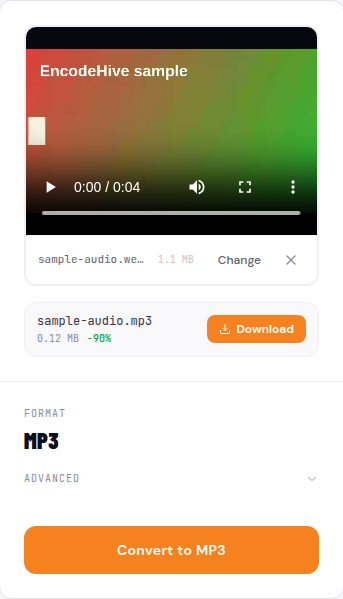
When it finishes, a green badge shows the file size and a Download button appears. Click Download. The MP3 file saves to your browser’s usual download location - no renaming needed.
The original video is untouched. The MP3 is a new file.
Why not VLC?
VLC can extract audio to MP3 via Media > Convert/Save, and it’s a solid option if you already have it installed. The path is: Add file > Convert/Save > choose “Audio - MP3” profile > Browse for output > Start. That’s five steps with a few non-obvious dialogs, and you have to have VLC installed in the first place.
The browser tool is one drop and one click. For a one-off extraction, that’s usually the better trade-off - no install, faster to finish, works on any computer or phone.
If you regularly batch-convert large libraries of files, VLC or a command-line tool like ffmpeg may serve you better.
Platform notes
On Windows (PC)
Open the page in Chrome, Edge, or Firefox. Drag the video file from File Explorer onto the drop zone, or click Browse. The MP3 downloads to your Downloads folder by default. This is a working video to mp3 converter for PC that requires no installation.
On Mac
Open the page in Safari or Chrome. Drag the video from Finder onto the drop zone. Safari and Chrome both handle the WebAssembly conversion without issues on Apple Silicon and Intel Macs. The MP3 lands in ~/Downloads.
For converting mp4 to mp3 on a Mac, this is the quickest path that avoids installing additional software.
On iPhone / Android
Open the page in Safari (iPhone) or Chrome (Android). Tap the drop zone - you’ll get the system file picker. Navigate to the video in your Files app or iCloud Drive and tap it. Tap Convert to MP3, then tap Download when it finishes.
iPhone Safari gives each tab roughly 1-2 GB of memory. Videos under ~500 MB convert reliably; a long 4K video may hit the ceiling. If that happens, trim the video first or use a desktop browser.
Troubleshooting
The MP3 has no audio. The source video may not have an audio track - screen recordings without a microphone, or some gameplay captures, are video-only. Check the original file in a media player first.
The page runs out of memory on a large file. This happens most often on mobile. Try a shorter clip or use a desktop browser where you have more RAM available.
The conversion starts but never finishes. Keep the browser tab in the foreground on mobile; iOS and Android suspend background tabs and will pause the WebAssembly process mid-run.
Quality sounds compressed. The converter extracts the audio stream and re-encodes to MP3. Both the source and the output format use lossy compression, so there is a small quality loss compared to lossless formats like WAV. For spoken word and most music it is not audible. If you need lossless, see mp4-to-wav.
Related guides
FAQ
Frequently asked
How do I convert MP4 to MP3?
Open converter.encodehive.com/video-to-mp3, drop the MP4 onto the drop zone, and click Convert to MP3. The audio track is pulled out and saved as an MP3 file - takes about 10-30 seconds for a typical clip.
How do I convert WebM to MP3?
The same tool handles WebM. Drop the WebM file onto the drop zone at converter.encodehive.com/video-to-mp3 and click Convert to MP3. WebM is common on YouTube downloads and screen recordings, so this is one of the most frequent uses.
Is there a video to MP3 converter for PC (Windows)?
Yes - this converter works in Chrome, Edge, or Firefox on Windows with no install. Open the page, drop your video, click Convert to MP3, click Download. The file saves to your Downloads folder like any other download.
How do I convert MP4 to MP3 on a Mac?
Open the page in Safari or Chrome on your Mac, drag the MP4 onto the drop zone, and click Convert to MP3. macOS will save the resulting MP3 wherever your browser's default download folder is set - usually ~/Downloads.
Can I convert MP4 to MP3 in VLC?
Yes, VLC can do it via Media > Convert/Save, but it takes several steps to set up the audio-only output profile correctly. The browser tool is one drop and one click with no configuration.
How do I use this tool on iPhone?
Open converter.encodehive.com/video-to-mp3 in Safari on your iPhone. Tap the drop zone and pick the video from Files. Tap Convert to MP3, then tap Download when it finishes. The MP3 saves to your Files app.