Skip the reading
Open the MP4 → WAV converter
No watermark, no upload, no account. Runs in your browser.
MP4 carries compressed AAC audio. WAV carries uncompressed PCM audio - the raw samples, nothing thrown away. Editors, DAWs, and transcription services prefer WAV because they want lossless input to work from.
TL;DR
- Go to converter.encodehive.com/mp4-to-wav.
- Drop your MP4 into the drop zone.
- Click Convert to WAV.
- Click Download.
No account, no upload, no watermark. The conversion runs inside your browser.
Why WAV - and the size trade-off you should know about
WAV stores uncompressed PCM audio - every sample at full resolution. That is what DAWs like Logic or Reaper and transcription tools like Whisper want: lossless input they can process without generation loss.
The trade-off is size. AAC inside most MP4s runs at 128-320 kbps; WAV at CD quality is 1,411 kbps - roughly 4-10x larger than the audio it came from. Whether the converter’s size badge shows a plus or a minus depends on your source: a music or podcast MP4 that is mostly audio usually comes out bigger as WAV, while a heavy video file can come out smaller once the video track is dropped. Either way, the WAV is large in absolute terms. Use WAV when you need lossless input downstream; use MP3 when you just want a portable file to listen to.
One footnote on AIFF: it is Apple’s lossless cousin - sounds identical, works natively in GarageBand and Logic. WAV is the cross-platform choice every tool on every OS accepts. When in doubt, pick WAV.
Convert MP4 to WAV, step by step
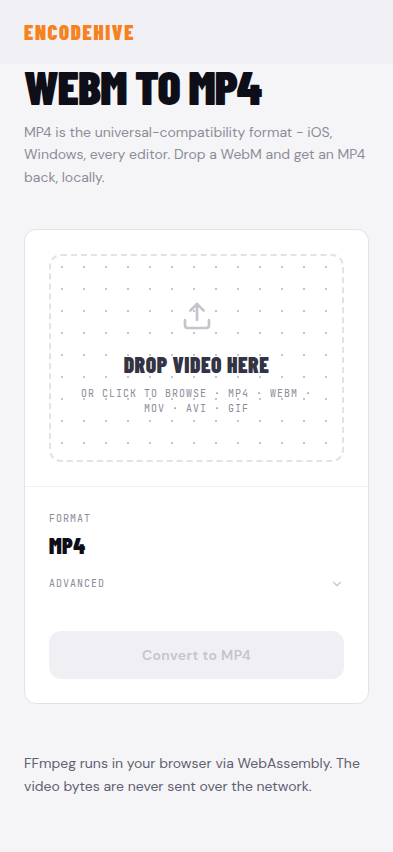
1. Open the converter
Go to converter.encodehive.com/mp4-to-wav. No signup, no popup, no cookie banner.
2. Drop your MP4
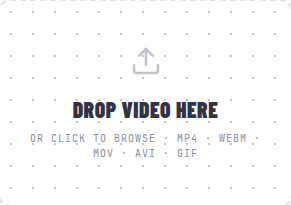
Drag the MP4 onto the dashed drop zone (“Drop video here · or click to browse”), or click to open a file picker. The file loads locally - nothing is sent to any server.
3. Click Convert to WAV
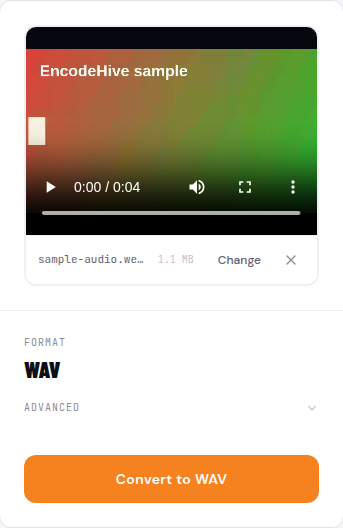
Once the file loads you see the name, size, and output format set to WAV. Click Convert to WAV. FFmpeg compiled to WebAssembly demuxes the MP4 and writes out raw PCM. A progress bar tracks it in real time.
4. Download the WAV
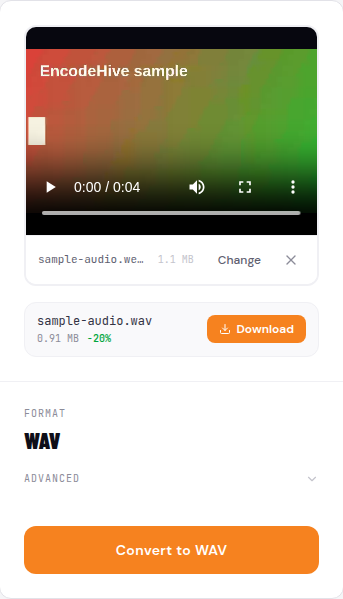
When the progress bar finishes, a size badge appears. Because WAV is uncompressed it is large in absolute terms - the badge may show a smaller file if you stripped out a big video track, or a larger one if the source was mostly audio. Either is normal. Click Download to save.
Why not iTunes / Music or Audacity?
Both work, but they are heavyweight for a one-off job.
iTunes / Apple Music can export WAV - but the path is: import the MP4, let the library scan it, right-click, Create WAV Version, find the file somewhere in the iTunes Media folder. If the MP4 is a video rather than audio-only, iTunes may refuse to import it.
Audacity is excellent but requires a separate install (plus the FFmpeg plugin on newer macOS), opening a project, File - Export, choosing WAV, and clicking through the metadata dialog.
The browser converter is one drop and one click. Nothing installed, nothing uploaded.
Platform notes
On Mac
Open the converter in Chrome or Safari on macOS 12 or later. Drag the MP4 from Finder straight onto the drop zone. Click Convert to WAV, then Download. The WAV lands in your Downloads folder.
On Windows 11
Open the same URL in Chrome, Edge, or Firefox. Drag the MP4 from File Explorer onto the drop zone or use the Browse button. Click Convert to WAV, then Download. Edge and Chrome both handle WebAssembly well here.
On iPhone / Android
Open the converter in Safari (iPhone) or Chrome (Android). Tap the drop zone to open the Files picker and pick the MP4. Tap Convert to WAV. Mobile conversion is slower - a 5-minute clip takes 1-3 minutes on a recent device - but it completes correctly. Tap Download to save the WAV when done.
Troubleshooting
The WAV is silent. Some MP4s have video only - no audio track at all. Play the original first to confirm it has sound.
Out of memory on mobile. iPhone Safari caps each tab at roughly 1-2 GB. Because WAV is large, a long 4K clip can hit that ceiling. Trim the video first or switch to a desktop browser.
Need a smaller file? Use the MP3 extractor instead. MP3 is lossy but 4-10x smaller - the right pick when you just need audio to listen to or share.
Related guides
FAQ
Frequently asked
How do I convert MP4 to WAV on Mac for free?
Open converter.encodehive.com/mp4-to-wav in Safari or Chrome, drop your MP4, and click Convert to WAV. The conversion runs inside the browser using WebAssembly - no app to install, no upload. It works on any Mac running macOS 12 or later.
How do I convert MP4 to WAV on Windows 11?
The same browser tool works on Windows 11. Open the page in Chrome, Edge, or Firefox, drop the MP4, and click Convert to WAV. Everything runs locally - your file never leaves your PC.
Why is the WAV file bigger than the original MP4?
WAV stores uncompressed PCM audio - every sample at full resolution, nothing thrown away. MP4 audio is typically AAC, which is compressed. A 4-minute song that is 5 MB as AAC becomes roughly 40-50 MB as WAV. That is expected and correct; WAV is bigger by design.
How do I convert MP4 to WAV on iPhone or Android?
Open converter.encodehive.com/mp4-to-wav in Safari (iPhone) or Chrome (Android), tap the drop zone, pick the MP4 from Files or your storage, and tap Convert to WAV. Mobile browsers run the same WebAssembly engine, so the process is identical - just slower on very large files.
How do I convert MP4 to WAV free online without software?
EncodeHive's browser converter does it with no software and no upload. Drop the MP4, click Convert to WAV, click Download. The file never leaves your device, so it works in Airplane Mode once the page is loaded.
WAV or AIFF - which should I use?
Both are lossless PCM formats and sound identical. AIFF is Apple's version, native to GarageBand, Logic, and older Mac workflows. WAV is the cross-platform standard accepted by every DAW, video editor, and transcription tool on Windows, Mac, and Linux. When in doubt, choose WAV.