Most “online converters” upload your file to a server you don’t control. That server can cache it, log it, retain it for days, or expose it in a breach. For a holiday clip that’s a minor annoyance. For sensitive footage, a document scan, an ID, a medical recording, or anything covered by an NDA, it’s a real risk.
EncodeHive converts video and images entirely inside your browser. The file never leaves your device.
TL;DR
- Open converter.encodehive.com in any modern browser.
- Drop your video or image onto the drop zone.
- Click Convert to <format>.
- Click Download (video) or Save (image).
No upload, no account, no watermark. The conversion runs on your own CPU.
How in-browser conversion works
The key ingredient is WebAssembly (WASM) - a binary format that lets compiled C/C++ programs run inside a browser tab at near-native speed.
FFmpeg, the tool that powers most professional video processing pipelines, has been compiled to WASM. When you drop a video file onto the converter, the browser reads it from your disk using the File API, hands it to the WASM binary running in the tab, and the conversion executes entirely on your CPU. The output bytes are written back to browser memory and then offered to you as a download.
At no point does a network request go out carrying your file. You can prove it yourself: load the page, wait for it to finish loading, then switch your device to Airplane Mode or disconnect from Wi-Fi. Drop a file and convert it. It completes. That is not possible if the conversion were happening on a remote server.
The same model applies to images. WASM codecs (for JPEG, WebP, AVIF, PNG, and GIF) run locally. “Convert video without uploading” and “convert images without uploading” are the same architecture.
Upload-based vs in-browser converters
| Upload-based converter | In-browser (EncodeHive) | |
|---|---|---|
| Privacy | File sent to a third-party server | File never leaves your device |
| Speed for large files | Can offload work to fast server hardware | Bounded by your device CPU |
| Works offline | No | Yes, once the page has loaded |
| File size limits | Often 100 MB - 500 MB on free tiers | Limited by device RAM (~1-2 GB on mobile Safari) |
| Watermarks / ads | Common on free tiers | None |
To be fair: server-side tools can handle truly massive files that would overwhelm a mobile browser, and they can use GPU-accelerated encoding. If you’re working with multi-gigabyte footage on a fast connection and privacy isn’t a concern, a server-side tool may be faster. For everything else - and especially for anything sensitive - in-browser is the better call.
Convert video without uploading, step by step
1. Open the converter
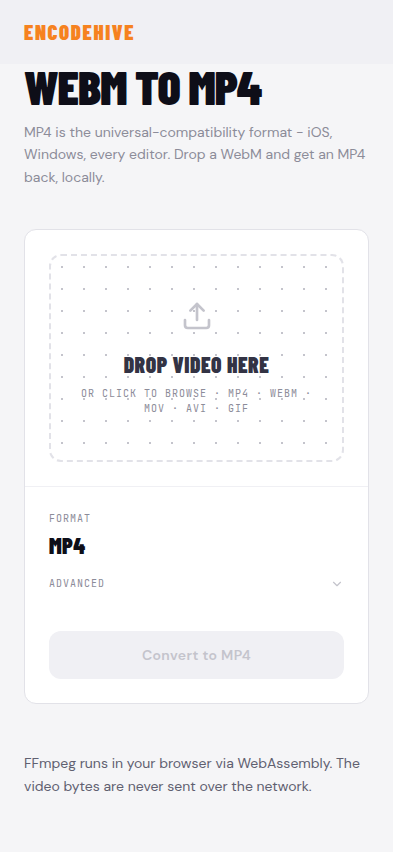
Go to converter.encodehive.com. The page loads in about a second. You’ll see a drop zone in the center of the screen. No signup prompt, no cookie banner.
2. Drop your file
Drag your video (or image) onto the drop zone, or click inside it to browse. For video you’ll see “Drop video here · or click to browse · MP4 · WebM · MOV · AVI · GIF”. For images: “Drop images here · or click to browse · JPEG · PNG · WebP · AVIF · GIF”.
The file is read from your disk directly by the browser. Watch your browser’s network tab in DevTools if you want to confirm - no upload request appears.
3. Click Convert
Choose your output format, then click Convert to <format>. A progress bar appears. Conversion speed depends on your device - a 1-minute 1080p clip takes roughly 30-60 seconds on a modern phone, faster on a desktop.
Don’t minimize the tab on mobile while it runs - iOS and Android may suspend background tabs.
4. Download the result
When the conversion finishes, a green badge shows the size reduction. Click Download (for video/audio) or Save (for images) to write the file to your device.
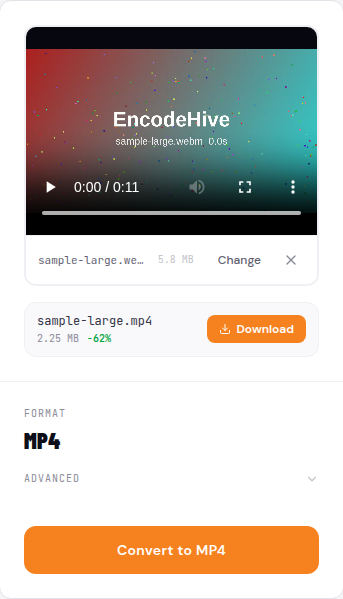
The original file is untouched. The output is a new file in your downloads folder.
What you can convert here, privately
The same private architecture covers every converter on the site - video, audio, and images.
- Convert WebM to MP4 on iPhone - Safari can’t play WebM; this fixes that without an app
- Convert MOV to MP4 on iPhone - share iPhone videos with Android or Windows users
- Convert WebM to MP4 in VLC - and the easier way - desktop options compared
- Convert MP4 to GIF without losing quality - GIF for Slack, Notion, README files
- Extract MP3 from a video - strip audio from any video, privately
- Convert MP4 to WAV - lossless audio extraction for editing
- Convert PNG to JPG on Mac - no Preview workarounds needed
- Batch convert images to WebP - drop many files at once, all processed locally
Because “convert images without uploading” uses the same WASM model, every image guide on this list carries the same privacy guarantee as the video ones.
Why most online converters upload your files
Server-side converters aren’t lazy engineering - processing on a fast server with GPU encoding makes sense for huge files and works on any device without software installation. The tradeoff is that your file is now on someone else’s machine. Retention policies vary, windows can be long, and breaches happen. For anything sensitive - a client’s footage, a medical clip, a signed document - that’s a real risk. Watermarks, file size caps, and slow queues when the server is busy are all side effects of the same architecture.
In-browser conversion eliminates all of it, with the one honest caveat that your device CPU and RAM are the ceiling.
Troubleshooting
The conversion fails on a large file on mobile. Mobile Safari allocates roughly 1-2 GB per tab. If your video is long or high-resolution, it may exceed that ceiling. Try trimming the clip first, or use the same page on a desktop browser.
The page loads but the Convert button never activates. The WASM binary needs to download before conversion can start. On a slow connection this can take a few seconds. Wait for the drop zone to appear fully before dropping a file.
The output file is larger than the input. This can happen when converting to a lossless or less-compressed format (e.g. MOV to WAV, or a heavily compressed source to a higher-bitrate output). It’s expected behavior, not an error.
Related guides
FAQ
Frequently asked
Is it safe to use online converters?
It depends on the converter. Most upload your file to a remote server, where it can be cached, logged, or retained after you close the tab. EncodeHive never uploads anything - conversion runs inside your browser, so 'safe' means the same as running local software.
Do online video converters upload my files?
Most do. Server-side converters need your file on their machine to process it. EncodeHive is an exception: it uses WebAssembly to run FFmpeg directly in your browser tab. You can verify this by loading the page, switching your device to Airplane Mode, then running a conversion - it still completes.
How does in-browser video conversion work?
FFmpeg - the industry-standard video tool - is compiled to WebAssembly (WASM), a binary format every modern browser can execute at near-native speed. When you drop a file, the browser reads it from disk using the File API, passes it to the WASM binary, and writes the output back to memory. No network request is made at any point.
Does in-browser conversion work offline?
Yes, once the page has loaded. The WASM binary and codec files are downloaded once when you first visit. After that, conversion works with no internet connection. Turn on Airplane Mode after the page loads and try it yourself.
Is there a file size limit for private video conversion?
There is no server-imposed cap because no server is involved. The practical limit is your device's RAM - browser tabs on desktop typically have several gigabytes available. Mobile Safari is the tightest constraint, with roughly 1-2 GB per tab; files over ~500 MB may fail on older iPhones.
Is it really free - no watermark, no account?
Yes. There is no account, no watermark, no usage cap, and no ads injected into your output. The tool is funded by the site, not by monetizing your files.