Skip the reading
Open the MP4 → GIF converter
No watermark, no upload, no account. Runs in your browser.
MP4 to GIF is one of the most-searched video conversions on the web. The catch is that GIF is a very old format capped at 256 colors per frame - so a long clip will always look a bit washed out and will balloon to a huge file. The trick to getting good results is keeping the clip short and tuning the frame rate, not chasing a “lossless” setting that doesn’t exist in GIF.
This guide shows the fastest way to do it: a free browser tool that adds no watermark, uploads nothing, and works on Mac, Windows, and your phone.
TL;DR
- Open converter.encodehive.com/mp4-to-gif in any browser.
- Drop your MP4 onto the drop zone.
- Expand Advanced and set the frame rate (10-15 fps is a good starting point).
- Click Convert to GIF, then Download.
No upload, no watermark, no account.
What “without losing quality” actually means for GIF
GIF was designed in 1987 for small palette graphics - it was never meant for video. Every frame is quantised down to 256 colors, which means rich video footage always loses some color fidelity. That is not a tool limitation; it is how the format works.
What you can control:
- Clip length. A 3-second clip produces a usable file. A 60-second clip at 1080p will be hundreds of megabytes and will still look worse than the source, because more frames means the palette has to cover more variation. Trim your MP4 to the exact moment you want before converting.
- Frame rate. 10-15 fps looks smooth for most GIFs and keeps the file size reasonable. 24+ fps is rarely worth the size increase for a GIF.
- Resolution. Keeping the original resolution is fine for short clips. Scaling down (via the Advanced panel) helps a lot if you need a smaller file.
Convert MP4 to GIF, step by step
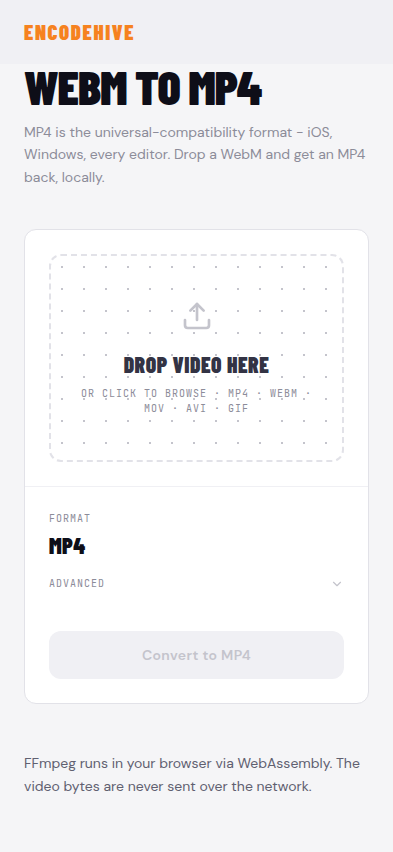
1. Open the converter
Go to converter.encodehive.com/mp4-to-gif. The page loads in a second. You’ll see the video drop zone and nothing else - no signup, no popup, no cookie banner.
2. Drop or browse for your MP4

Drag your MP4 into the dashed box (“Drop video here · or click to browse · MP4 · WebM · MOV · AVI · GIF”), or click inside it to open a file picker. The video loads with a thumbnail preview, file name, and size. Conversion hasn’t started yet - you still set your options first.
3. Open Advanced and set the frame rate
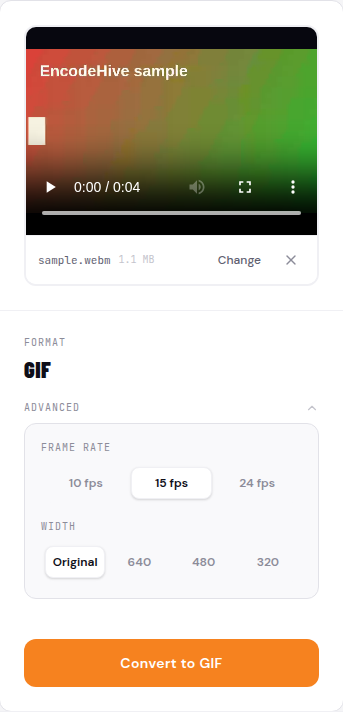
Expand the Advanced disclosure panel. Here you’ll find the fps control (and optionally resolution scaling). Dial fps down to 10-15 for most use cases - this has the biggest impact on output size. If the clip is longer than 5 seconds, trim it in your video editor first or use just a short segment.
When you’re happy with the settings, click Convert to GIF. The conversion runs entirely in your browser using FFmpeg compiled to WebAssembly. Nothing leaves your device.
4. Download the GIF
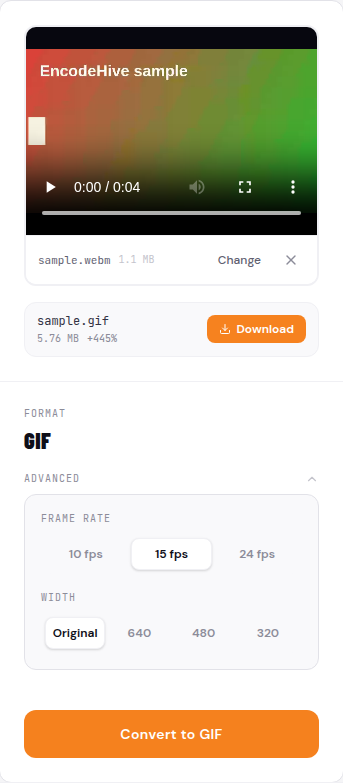
When conversion finishes, a green badge shows the file size (and how it compares to the original). Click Download to save the GIF. That’s it - no watermark, no account, no limit on how many you convert.
Why not Photoshop or After Effects?
They both work, but neither is the right tool for a quick GIF.
Photoshop can import video frames and export as GIF via Save for Web. The quality is fine, but it requires a Creative Cloud subscription (roughly $55/month), and the multi-step import-and-export workflow takes several minutes even for a short clip.
After Effects is worse - it cannot export GIF directly at all. You export to a video file first and then run it through Adobe Media Encoder or a separate utility to produce the GIF. That is designed for motion graphics studios, not for grabbing a reaction GIF.
The browser tool on this page needs nothing installed, costs nothing, and produces a clean GIF in under two minutes. For most people, it is the right default.
On Mac / Windows / iPhone
The converter is a web page, so it works the same way on every platform.
Mac (Safari, Chrome, Firefox): Drag the MP4 straight from Finder onto the drop zone. On a 2021 MacBook, a 5-second 1080p clip converts in about 3-5 seconds.
Windows (Chrome, Edge, Firefox): Same drag-and-drop from Explorer. You can also paste the MP4 path into the file picker if drag-and-drop is awkward.
iPhone / Android: Tap the drop zone, pick the file from your Files app or Camera Roll, and tap Convert to GIF. It works - though a 4K or very long clip may be slow on older phones. Keep clips short (under 10 seconds) for reliable mobile performance.
Tips to keep the GIF small and sharp
- Trim first. A 3-second clip is almost always enough for a reaction GIF or a product demo loop.
- Lower fps, not resolution. Dropping from 24 to 12 fps cuts the file roughly in half with minimal visible difference. Dropping resolution also helps but affects sharpness more.
- Don’t add GIF captions in the converter. Add text in a video editor before you convert, so the letters are baked into the frames and not extra metadata.
- Convert offline if needed. After the page loads you can switch on Airplane Mode and convert - it still works. The conversion is entirely local.
Related guides
FAQ
Frequently asked
How do I convert MP4 to GIF without losing quality?
Keep the source clip short (a few seconds), set a reasonable frame rate (10-15 fps), and leave the resolution as high as you need. GIF is capped at 256 colors, so some color loss is unavoidable - but using a short clip at full resolution minimises the visible degradation.
How do I get high-quality MP4 to GIF output?
The biggest lever is clip length. A 3-second clip at 1080p looks sharp; a 30-second clip becomes enormous and blocky because GIF's 256-color palette has to cover far more variation. Trim your MP4 to the exact moment you want before converting.
How do I convert MP4 to GIF in Photoshop?
In Photoshop, go to File > Import > Video Frames to Layers, set your frame rate, then File > Export > Save for Web and choose GIF. It works, but Photoshop is a paid Creative Cloud subscription and takes several steps. The browser route on this page is faster for a quick GIF.
How do I convert MP4 to GIF in After Effects?
After Effects itself cannot export GIF directly - you need to export to a video file and then use Adobe Media Encoder or a separate tool to produce the GIF. It is a multi-step process designed for motion graphics work, not a simple GIF export. The browser tool is a better fit when you just need a GIF quickly.
Does this work on Mac and Windows with no watermark?
Yes. The converter runs in any desktop browser - Chrome, Firefox, Safari, Edge - on Mac and Windows. There is no account, no watermark, and no watermark-removal upsell. The GIF you download is exactly what the converter produced.
Is there a free MP4 to GIF converter online without a watermark?
Yes - this one. Many online converters plant a logo in the corner or limit your exports until you pay. EncodeHive runs entirely in your browser, never uploads your file, and produces a clean GIF every time at no cost.