Skip the reading
Open the MOV → MP4 converter
No watermark, no upload, no account. Runs in your browser.
Your iPhone records every video as a MOV file. That is great on Apple devices, but send one to a Windows PC, an Android phone, or upload it to a web form and you will often hit a wall - wrong format, won’t preview, won’t play. The fix is to convert it to MP4, which works everywhere.
This guide shows the fastest way to do that on an iPhone: a free browser converter that runs entirely on-device. No app to install, nothing uploaded, no watermark.
TL;DR
- On your iPhone, open converter.encodehive.com/mov-to-mp4 in Safari.
- Tap the drop zone, pick your MOV from Files.
- Tap Convert to MP4.
- Tap Download and save to Files or Photos.
No app, no upload, no account. The conversion happens inside Safari using your iPhone’s CPU.
Why MOV trips up non-Apple devices
When your iPhone shoots a video it records HEVC (H.265) video inside a QuickTime MOV container. That combination plays perfectly on every Apple device, but it has two friction points elsewhere:
- The container. MOV is Apple’s QuickTime format. Many Windows apps, Android players, and web uploaders only accept MP4, so the file gets rejected before the codec even matters.
- The codec. HEVC is efficient and sharp, but it requires a hardware license. Older PCs and Android phones without the right decoder just show a blank screen or an error.
MP4 with H.264 video is the lowest-common-denominator format - every browser, every phone, every social platform, every editor handles it without complaint. Converting MOV to MP4 is really just repackaging the video into something universally readable.
Convert MOV to MP4 on iPhone, step by step
1. Open the converter in Safari
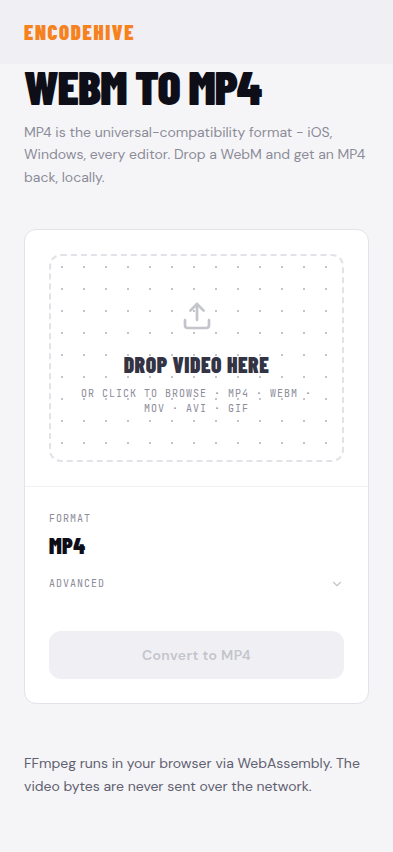
On your iPhone, go to converter.encodehive.com/mov-to-mp4.
The page loads in about a second. You will see a single drop zone in the middle of the screen - no signup, no popup, no cookie banner.
2. Tap the drop zone and pick your MOV

Tap inside the dashed box (“Drop video here · or click to browse”). iOS opens the Files picker. Navigate to wherever the MOV lives - iCloud Drive, your Downloads folder, or the On My iPhone storage - and tap the file.
If the MOV is sitting in Photos rather than Files, export it first: long-press the video in Photos, tap Share, then Save to Files.
3. Tap Convert to MP4
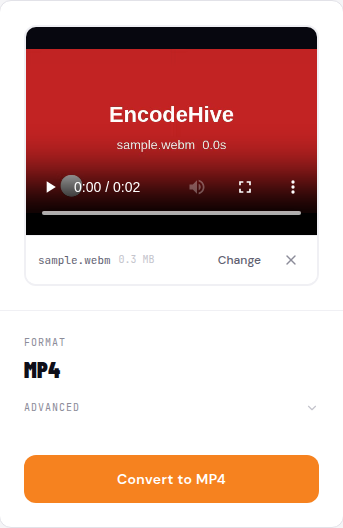
Once the file loads you get a small preview, the file name and size, the output format set to MP4, and an orange Convert to MP4 button. The defaults are fine for most uses - advanced controls like bitrate and resolution live behind the Advanced toggle if you need them. Tap Convert to MP4.
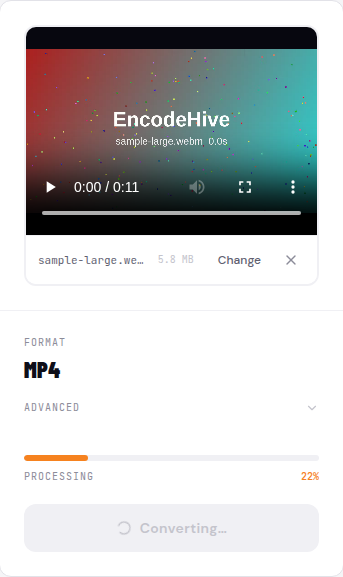
A progress bar appears. Keep the screen on while it runs - if iOS suspends the Safari tab mid-conversion, you will need to start again.
4. Save the MP4 to Files or Photos
When the conversion finishes, a green badge shows how much smaller the MP4 is, and a Download button appears beside it.
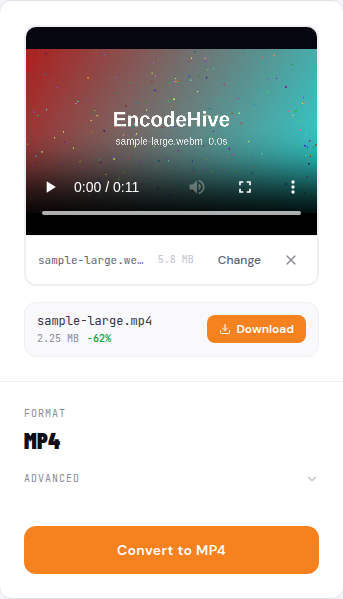
Tap Download. iOS gives you the standard share sheet:
- Save to Files to keep it in iCloud Drive or local storage.
- Save Video to send it straight to your Photos library.
- Or forward it directly to Messages, Mail, WhatsApp, or any other app.
The original MOV is untouched - the MP4 is a separate new file.
Why not iMovie or CapCut?
Both apps can technically get you an MP4. In iMovie you add the clip to a project, tap Share - Export File, and pick MP4. In CapCut you import the clip and hit Export. It works, but you are going through a full editing workflow just to change a container - unnecessary steps, waiting for a project to render, and in CapCut’s case a potential watermark unless you have the paid plan.
The browser converter is one drop and one tap, with no project to create and no install required. For a straight format swap with no edits, it is the shorter path every time.
On Mac
Open converter.encodehive.com/mov-to-mp4 in any browser and drag the MOV file onto the drop zone. Click Convert to MP4, wait for the progress bar, then click Download.
On Mac there is no memory ceiling to worry about, so large files and long 4K recordings convert without issue. If you prefer a desktop tool, VLC’s Media - Convert/Save menu does the same job, though it takes more steps.
On Android
MOV files often fail to play or upload on Android because the QuickTime container is not natively supported. Open converter.encodehive.com/mov-to-mp4 in Chrome, tap the drop zone, pick the MOV from your file manager, and tap Convert to MP4. The result is a standard H.264 MP4 that plays on any Android device and uploads everywhere.
Troubleshooting
The page runs out of memory. iPhone Safari gives each tab roughly 1-2 GB of memory. MOV files from iPhone cameras can be large - a few minutes of 4K HEVC footage can hit that ceiling. If a large file fails, trim it first using Photos’ built-in editor, or use a Mac where memory is not a constraint.
The HEVC video looks different after converting. HEVC (H.265) packs more detail per bit than H.264. The converter re-encodes at a high bitrate by default, so the difference is imperceptible in normal viewing, but if you zoom in on a pixel-level comparison you will see a small amount of added compression. For social sharing and most editors, this is a non-issue.
The conversion never starts. Make sure you are using Safari, not a third-party browser. iOS restricts WebAssembly memory in some non-Safari browsers, which can prevent the converter from loading the FFmpeg engine.
The MOV has no audio after converting. This is rare and usually means the MOV has an audio track in a format the converter could not re-encode. Re-export the original from the Camera Roll if possible, or try opening it in VLC on a desktop first to inspect the streams.
Related guides
FAQ
Frequently asked
How do I convert MOV to MP4 on iPhone for free?
Open converter.encodehive.com/mov-to-mp4 in Safari, tap the drop zone to pick your MOV from Files, tap Convert to MP4, then tap Download. The whole thing takes under two minutes, runs inside the browser, and costs nothing - no account, no watermark.
How do I convert MOV to MP4 on Mac?
Open converter.encodehive.com/mov-to-mp4 in any browser, drag the MOV file onto the drop zone, click Convert to MP4, and save the output. On Mac there are no memory limits to worry about, so large files and long 4K clips work without issue.
Can I convert MOV to MP4 without losing quality?
Yes. The converter re-encodes at a high bitrate by default, so the visual difference is imperceptible at normal viewing distance. Both formats are technically lossy, but the output quality matches what your eye sees in the original.
How do I convert MOV to MP4 on Android?
The same browser converter works in Chrome on Android. Open converter.encodehive.com/mov-to-mp4, tap the drop zone, pick the MOV from your file manager, and tap Convert to MP4. MOV files often fail to play on Android because the QuickTime container is not natively supported, so converting to MP4 fixes playback and sharing.
How do I convert MOV to MP4 in CapCut or iMovie?
Both apps can export a re-encoded video. In iMovie, add the MOV to a project and tap Share - Export File and choose MP4. In CapCut, import the clip and hit Export. It works, but it is roundabout - you are editing a video just to change the container. A browser converter is faster for a straight format swap with no edits.
How do I convert MOV to MP4 in VLC?
On desktop, open VLC, go to Media - Convert/Save, add the MOV file, choose MP4 as the output profile, and click Start. It works but requires VLC to be installed and several menu steps. The browser converter at converter.encodehive.com/mov-to-mp4 is faster if you just want to drag, click, and save.