Skip the reading
Open the WebM → MP4 converter
No watermark, no upload, no account. Runs in your browser.
iPhones don’t play WebM files. Open one in Safari or the Files app and you get a black screen. The fix is to convert it to MP4, which iOS plays everywhere - Messages, Photos, Mail, every social app.
This guide shows the fastest way: a free browser-based converter that runs entirely on your iPhone. No App Store install, no upload, no account.
TL;DR
- On your iPhone, open converter.encodehive.com/webm-to-mp4 in Safari.
- Tap the drop zone, pick your WebM from Files.
- Tap Convert to MP4.
- Tap Download and save to Files or Photos.
No app, no upload, no watermark. The whole conversion happens inside Safari using your iPhone’s CPU.
Why your iPhone can’t play WebM in the first place
WebM is Google’s video format. It uses the VP8, VP9, or AV1 codecs and is the default video container on YouTube, Twitch, and most modern Android phones.
Apple has never added native WebM playback to iOS. AVFoundation - the system framework every iPhone app uses for video - only decodes formats Apple licenses, which means MP4 and MOV (H.264 and HEVC). VP9 is not on that list. That’s why a .webm download just sits in your Files app with no preview and refuses to play.
The two ways out are: install a third-party player (VLC works), or convert the file to MP4. Converting is usually what you actually want, because then the video plays everywhere - including iMessage and Photos.
Convert WebM to MP4 on your iPhone, step by step
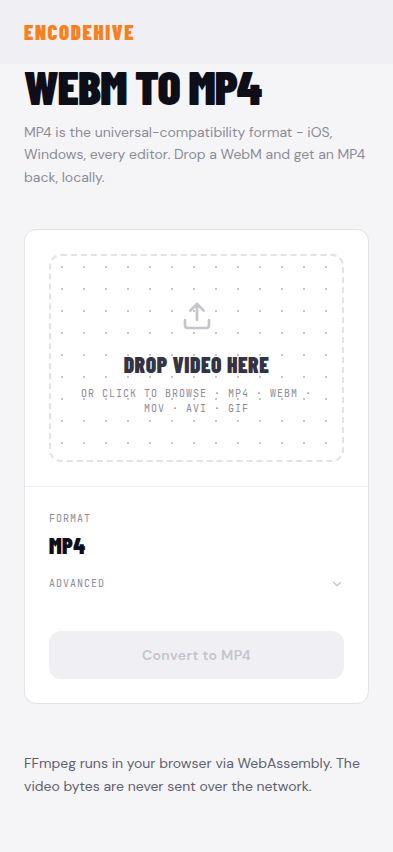
1. Open the converter in Safari
On your iPhone, go to converter.encodehive.com/webm-to-mp4.
The page loads in about a second. You’ll see a single drop zone in the middle of the screen. There is no signup, no popup, no cookie banner.
2. Tap the drop zone and pick your WebM
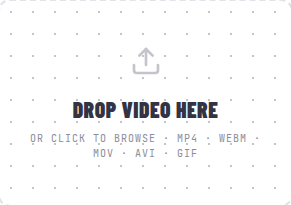
Tap inside the dashed box (“Drop video here · or click to browse”). iOS opens the Files picker. Navigate to wherever the WebM lives - iCloud Drive, your Downloads folder, or another app’s storage - and tap the file.
If your WebM is in Photos, you’ll need to first export it to Files. (Long-press the video in Photos → Share → Save to Files.)
3. Tap Convert to MP4
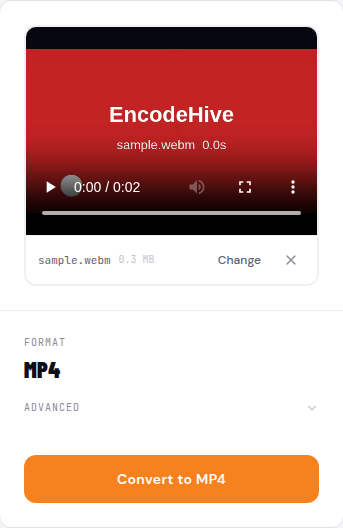
Once the file loads you get a small preview, the file name and size, the output format (MP4), and an orange Convert to MP4 button. The defaults are fine for almost everyone - extra controls like bitrate and resolution live behind Advanced if you ever need them. Tap Convert to MP4.
A progress bar appears. On a recent iPhone, a 1-minute 1080p clip takes about 30-60 seconds. Don’t lock your phone while it’s running - iOS will suspend the tab.
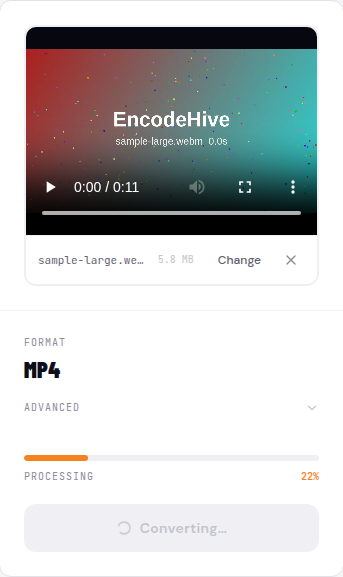
4. Save the MP4 to Files or Photos
When the conversion finishes, a green badge shows how much smaller the MP4 is and a Download button appears next to it.
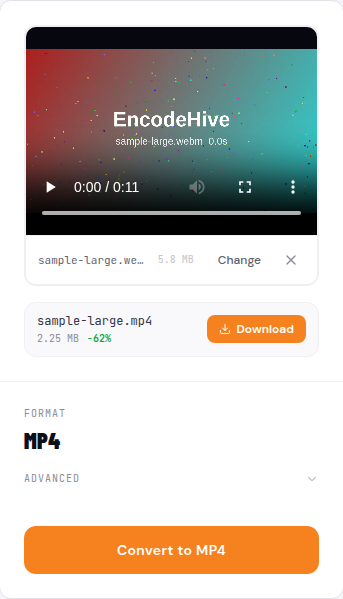
Tap Download. iOS gives you the standard share sheet:
- Save to Files to keep it in iCloud Drive or local storage.
- Save Video to add it directly to your Photos library.
- Or send it straight to Messages, Mail, or any other app.
That’s it. The original WebM is untouched - the MP4 is a new file.
Why not just use an app?
You can. Apps like Media Converter or The Video Converter on the App Store do the same thing.
But for a one-off conversion, the browser approach wins on three things:
- No install. Two-minute job, no 50 MB download, no permissions prompt.
- No upload. Most “online” WebM-to-MP4 sites upload your file to their server. This one doesn’t - the conversion is JavaScript running inside Safari. You can verify by enabling Airplane Mode after the page loads; the conversion still completes.
- No watermark, no ads, no account. Free apps usually plant a logo in the corner or require a Pro upgrade. This site never does.
Does it work on Android too?
Yes - the same page works in Chrome on Android. Tap the drop zone, pick the file, tap Convert. Android natively plays WebM, so the use case is narrower: usually you only need MP4 on Android when sharing to iMessage from a mixed group chat, or when an app explicitly requires MP4.
Troubleshooting
The page says “out of memory.” iPhone Safari gives each tab roughly 1-2 GB of memory. If the WebM is over ~500 MB or is 4K and several minutes long, the conversion can hit that ceiling. Trim the file first (using Photos’ built-in trimmer after a temporary save) or use a Mac.
The conversion never starts. Make sure you’re on Safari, not Chrome on iOS. Both should work, but Safari has been more reliable for WebAssembly video work on iOS.
The MP4 plays audio but no video (or vice versa). This is rare and usually means the source WebM uses an exotic codec combination. Re-download the original if possible, or open it in a desktop tool like VLC first to inspect.
Related guides
- How to convert MOV to MP4 on iPhone - same flow, different source format
- How to convert WebM to MP4 in VLC - and the easier way - desktop alternative
- Convert video without uploading - the privacy pitch in detail
FAQ
Frequently asked
Why won't my iPhone play WebM files?
Apple has never shipped native WebM support in iOS Safari or the system video player. AVFoundation - the framework every iOS app uses for video - only decodes formats Apple chose to license, which is MP4/MOV (H.264, HEVC) and not VP8/VP9/AV1. That is why a WebM downloaded from a website opens to a black screen on iPhone.
Does this upload my video to a server?
No. The whole conversion runs inside Safari using FFmpeg compiled to WebAssembly. Your file never leaves the iPhone - you can confirm this by turning on Airplane Mode after the page loads; the conversion still completes.
Is there a file size limit?
There is no hard cap, but iPhone Safari gives each tab roughly 1-2 GB of memory. WebMs under ~500 MB convert reliably; very long 4K clips may hit the memory ceiling. If a large file fails, trim it first or use a Mac.
How long does the conversion take on iPhone?
A 1-minute 1080p WebM finishes in about 30-60 seconds on a modern iPhone (12 and up). It is slower than a Mac because mobile Safari runs the WebAssembly conversion on a single CPU core, but it works on any iPhone Safari supports.
Will the MP4 keep the same quality as the WebM?
Yes - the converter re-encodes at a high bitrate by default, so the visual quality matches the source. There is a small amount of compression because both formats are lossy, but you will not see a difference at normal viewing distance.
Can I convert WebM to MP4 without an app on Android too?
Yes. The same page works in Chrome on Android the same way - tap the drop zone, pick the file, tap Convert. Android handles WebM natively, but converting to MP4 is still useful when sharing to iMessage or apps that require MP4.