Skip the reading
Open the HEIC → JPG converter
No watermark, no upload, no account. Runs in your browser.
HEIC photos come from iPhones - it’s been Apple’s default format since iOS 11. Someone AirDrops you a photo, or you download one from a message or email, and your Android phone either shows a blank thumbnail or refuses to open it. Even when Google Photos manages to display it, the app you actually want to send it to often won’t accept a .heic file.
This guide shows the fastest fix: convert HEIC to JPG with a free browser-based converter that runs entirely on your phone. No app to install from the Play Store, no upload, no account.
TL;DR
- On your phone, open converter.encodehive.com/heic-to-jpg in Chrome.
- Tap the drop zone and pick your HEIC from Files or Downloads (select several to batch convert).
- Leave the quality at 85, then tap Convert to JPEG.
- Tap Save on each finished file - it lands in your Downloads folder.
No upload, no watermark, no account, no app. The conversion happens right in your browser.
Why HEIC is awkward on Android
HEIC (High Efficiency Image Container) stores its picture data using HEVC - the same compression as H.265 video. That’s why an iPhone photo is so small. The catch on Android is uneven support: recent phones and Google Photos can usually open HEIC, but plenty of gallery apps, file managers, chat apps, and upload forms still don’t recognise it. So even when you can see the photo, you often can’t use it where you need to.
Converting to JPG removes the friction. JPG is the most universally supported image format there is - it opens in every Android app and uploads everywhere, with nothing extra installed.
Convert HEIC to JPG on Android, step by step
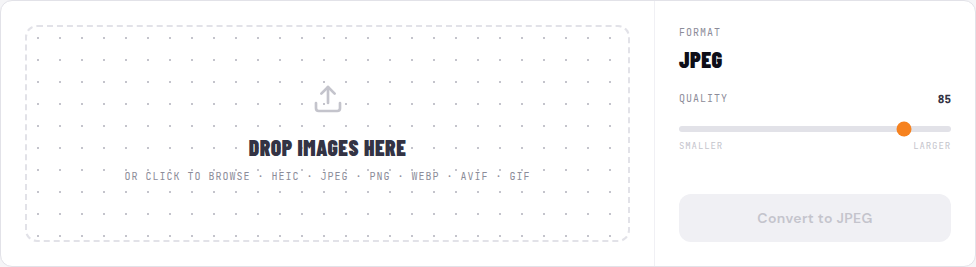
1. Open the converter in Chrome
Go to converter.encodehive.com/heic-to-jpg in Chrome (or Firefox, Samsung Internet, etc.). The page loads instantly - no signup, no popup, no cookie banner.
2. Pick your HEIC

Tap the drop zone (“Drop images here, or click to browse”). Android opens its file picker - choose the HEIC from Files, Downloads, or your gallery. A HEIC that arrived over AirDrop, email, or a messaging app is usually in Downloads. To batch convert, long-press to select several HEIC files at once - the converter queues them all.
3. Set the quality and tap Convert to JPEG
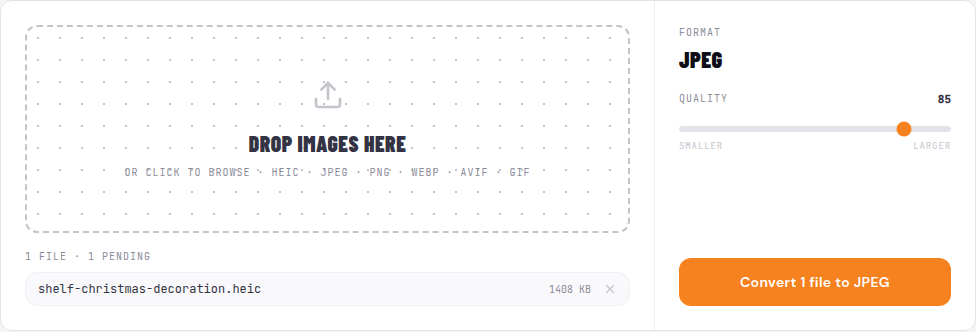
You’ll see the output format - locked to JPEG on this page - and a Quality slider. It defaults to 85, which is visually lossless for almost any photo. Drag it down toward Smaller for a tinier file, or up toward Larger to keep more detail. When you’re happy, tap Convert to JPEG.
The first HEIC you convert takes a moment longer while the decoder loads; after that it’s near-instant. It’s a local decode and encode - not an upload - so even a batch finishes quickly, and it works on mobile data or offline.
4. Save the JPG

Each finished file shows its new size and a badge with how much it changed. Tap the Save button to download the JPG to your phone’s Downloads folder, where the Files app and most gallery apps can find it. The original HEIC is untouched - the JPG is a brand-new file.
Converted a batch? Tap Save on each one, then hit Clear done to tidy the list.
On Windows
The same page works in Edge or Chrome on a PC. Drop the HEIC, set the quality, click Convert to JPEG, then Save. This is especially handy because Windows can’t open HEIC without buying Microsoft’s HEVC Video Extensions - the browser converter sidesteps that paid codec entirely. See How to convert HEIC to JPG on Windows for the full walkthrough.
On iPhone and iPad
If the HEIC is on the iPhone itself, you can convert it there before sending. Open the page in Safari, tap the drop zone, and pick a HEIC from Files or Photos. Tap Convert to JPEG, then Save - iOS lets you save the JPG back to Files or straight into your Photos library. Converting before you send means the Android user gets a JPG that just works.
Will I lose quality?
- Quality: at 85 the loss is imperceptible on photos. For archival originals, keep the HEIC as well; for sharing and uploading, JPG is the right trade.
- Color: HEIC can hold 10-bit, wide-gamut (Display P3) color; JPG is 8-bit sRGB. On a phone screen and for normal sharing you won’t notice, but it’s the reason photographers keep the HEIC original.
- Live Photos & depth: a HEIC may bundle a Live Photo’s motion or portrait depth data. Converting to JPG keeps just the still image - which is exactly what you want for sharing, but not a backup of those extras.
Related guides
- How to convert HEIC to JPG on Windows - the PC version, without the paid codec
- How to batch convert images to WebP for a website - smaller than JPG, for the web
- Convert images without uploading - why local conversion is more private
FAQ
Frequently asked
Why won't a HEIC photo open on my Android phone?
HEIC photos come from iPhones and use HEVC compression. Some newer Android phones and Google Photos can open them, but many gallery and file-manager apps still show a blank thumbnail or an error - and apps you want to upload the photo to often reject it. The simplest fix is to convert it to JPG: open converter.encodehive.com/heic-to-jpg in Chrome, pick the HEIC, and tap Convert to JPEG. JPG opens in every Android app.
How do I convert HEIC to JPG on Android without an app?
Open converter.encodehive.com/heic-to-jpg in Chrome, tap the drop zone, pick your HEIC from Files or Downloads, set the quality, and tap Convert to JPEG. The conversion runs in your browser using a WebAssembly HEIC decoder, so there is no app to install from the Play Store and nothing uploaded.
Does converting HEIC to JPG lose quality?
JPG is a lossy format, so a tiny amount of detail is discarded - but at the default quality of 85 you will not see a difference on a normal photo. The bigger change is that HEIC can store 10-bit and wide-gamut color, while JPG is 8-bit sRGB; for everyday sharing this is invisible, but if you are archiving originals keep the HEIC too.
How do I batch convert HEIC to JPG on my phone?
Tap the drop zone and select several HEIC files at once - the converter queues every file and converts them one after another. When they finish, tap Save on each. This is much faster than opening each photo in a separate app and re-exporting it.
Where do the converted JPGs go on Android?
Each Save downloads the JPG into your phone's Downloads folder, where the Files app and most gallery apps can see it. Your original HEIC is untouched - the JPG is a brand-new file you can share, upload, or move into your gallery.
Does this upload my photos to a server?
No. The conversion runs in your browser using a WebAssembly HEIC decoder, so your photos never leave your phone. You can confirm it by turning on Airplane Mode after the page loads - the conversion still works offline. That matters for personal photos you would not want sitting on a stranger's upload server.
How do I convert HEIC to JPG on Windows or iPhone?
The same page works everywhere. On Windows, open it in Edge or Chrome, drop the HEIC, and click Convert to JPEG - no paid HEVC codec needed. On iPhone, open it in Safari, tap the drop zone to pick a HEIC from Files or Photos, convert, then Save back to Files or Photos.