Skip the reading
Open the HEIC → JPG converter
No watermark, no upload, no account. Runs in your browser.
iPhones have saved photos as HEIC by default since iOS 11. It’s a smart format - the same photo at roughly half the size of JPEG - but it has one big drawback: Windows can’t open it without a paid codec. Double-click a HEIC in File Explorer and you’ll often get a prompt to buy Microsoft’s HEVC Video Extensions just to see the picture.
This guide shows the fastest way around that: convert HEIC to JPG with a free browser-based converter that runs entirely on your PC. No codec to buy, no app to install, no upload.
TL;DR
- On your PC, open converter.encodehive.com/heic-to-jpg.
- Drag your HEIC onto the drop zone (or drop several to batch convert).
- Leave the quality at 85, then click Convert to JPEG.
- Click Save on each finished file.
No upload, no watermark, no account, no codec. The conversion happens in your browser.
Why won’t HEIC open on Windows?
HEIC (High Efficiency Image Container) stores its picture data using HEVC - the same compression as H.265 video. That’s why an iPhone photo is so small, but it’s also why Windows balks: the HEVC decoder isn’t included with Windows, and Microsoft charges for the HEVC Video Extensions in the Store. Until you install that, the Photos app and File Explorer can’t render HEIC thumbnails or open the files.
Converting to JPG sidesteps the whole problem. JPG is the most universally supported image format on earth - it opens in every app, on every version of Windows, with nothing extra installed.
Convert HEIC to JPG on Windows, step by step
1. Open the converter
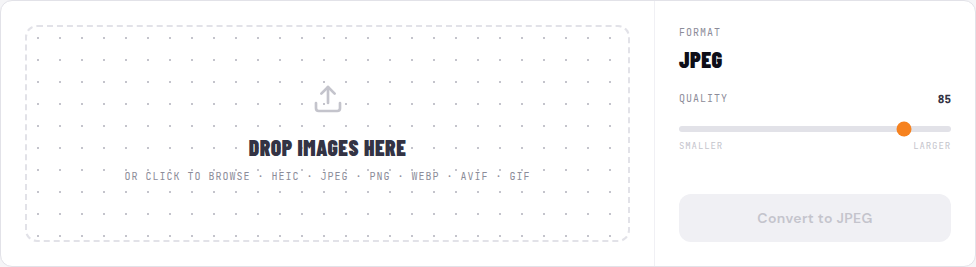
Go to converter.encodehive.com/heic-to-jpg in Edge, Chrome, or any browser. The page loads instantly - no signup, no popup, no cookie banner.
2. Drop your HEIC onto the page

Drag a HEIC straight from File Explorer onto the dashed box (“Drop images here”), or click it to open the file picker. If your HEIC came off the iPhone over a cable or AirDrop, it’s usually in your Pictures or Downloads folder. To batch convert, select several HEIC files at once - the converter queues them all.
3. Set the quality and click Convert to JPEG
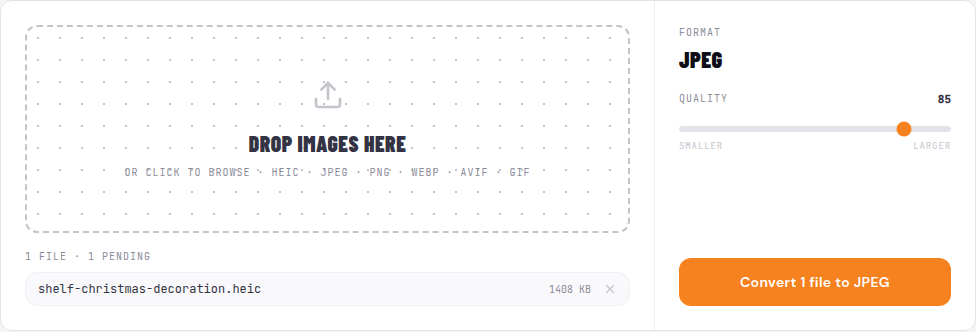
On the right you’ll see the output format - locked to JPEG on this page - and a Quality slider. It defaults to 85, which is visually lossless for almost any photo. Drag it down toward Smaller for a tinier file, or up toward Larger to keep more detail. When you’re happy, click Convert to JPEG.
The first HEIC you convert takes a moment longer while the decoder loads; after that it’s near-instant. It’s a local decode and encode - not an upload - so even a batch finishes quickly.
4. Save the JPG

Each finished file shows its new size and a badge with how much it changed (in the example above, a 1.4 MB HEIC came out a third smaller as a JPG). Click the Save button to download the JPG to your Downloads folder. The original HEIC is untouched - the JPG is a brand-new file.
Converted a batch? Click Save on each one, then hit Clear done to tidy the list.
On Mac
The same page works in Safari or Chrome on a Mac. Drop the HEIC, set the quality, click Convert to JPEG, then Save. Macs can already open HEIC and Preview can export one to JPEG (File > Export), but the browser converter wins for batches - drop a whole folder of HEIC photos and convert them in one go instead of exporting them one at a time.
On iPhone and iPad
Open the page in Safari, tap the drop zone, and pick a HEIC from Files or Photos. Tap Convert to JPEG, then Save - iOS lets you save the JPG back to Files or straight into your Photos library. Handy when someone on Windows asks you for a JPG and you’d rather convert before sending than make them install a codec.
Stop the problem at the source
If you keep running into HEIC files that won’t open, switch your iPhone to shoot JPEG: Settings > Camera > Formats > Most Compatible. New photos will be JPEG from then on. This doesn’t touch the HEIC photos already in your library - convert those with the steps above - but it stops new ones from piling up.
Will I lose quality?
- Quality: at 85 the loss is imperceptible on photos. For archival originals, keep the HEIC as well; for sharing and uploading, JPG is the right trade.
- Color: HEIC can hold 10-bit, wide-gamut (Display P3) color; JPG is 8-bit sRGB. On a normal screen and for normal sharing you won’t notice, but it’s the reason photographers keep the HEIC original.
- Live Photos & depth: a HEIC may bundle a Live Photo’s motion or portrait depth data. Converting to JPG keeps just the still image - which is exactly what you want for sharing, but not a backup of those extras.
Related guides
- How to convert WebP to JPG on Windows - the other format that won’t open in old apps
- How to batch convert images to WebP for a website - smaller than JPG, for the web
- Convert images without uploading - why local conversion is more private
FAQ
Frequently asked
Why won't my HEIC photos open on Windows?
HEIC uses HEVC compression, and Windows can't decode it out of the box - it needs Microsoft's HEVC Video Extensions, which is a paid add-on in the Microsoft Store. Rather than buying a codec just to view your photos, open converter.encodehive.com/heic-to-jpg/ in any browser, drop the HEIC, and click Convert to JPEG. JPG opens everywhere on Windows with no extra software.
How do I convert HEIC to JPG on Windows without installing anything?
Open converter.encodehive.com/heic-to-jpg/ in Edge or Chrome, drag your HEIC onto the page, set the quality, and click Convert to JPEG. The conversion runs in your browser using a WebAssembly HEIC decoder, so there is nothing to install and no paid codec to buy.
Does converting HEIC to JPG lose quality?
JPG is a lossy format, so a tiny amount of detail is discarded - but at the default quality of 85 you will not see a difference on a normal photo. The bigger change is that HEIC can store 10-bit and wide-gamut (Display P3) color, while JPG is 8-bit sRGB; for everyday sharing this is invisible, but if you are archiving originals keep the HEIC too.
How do I batch convert HEIC to JPG?
Drop all your HEIC files onto the converter at once - it queues every file and converts them one after another. When they finish, click Save on each, or use your browser's bulk-download. This is much faster than buying a codec and exporting photos one by one.
Does this upload my photos to a server?
No. The conversion runs in your browser using a WebAssembly HEIC decoder, so your photos never leave your PC. You can confirm it by turning on Airplane Mode after the page loads - the conversion still works offline. That matters for personal photos you would not want sitting on a stranger's upload server.
How do I stop my iPhone saving photos as HEIC in the first place?
On the iPhone, go to Settings > Camera > Formats and choose Most Compatible - new photos will be saved as JPEG instead of HEIC. This only affects future shots, so you will still need to convert the HEIC photos already in your library, which is what this tool is for.
How do I convert HEIC to JPG on a Mac or iPhone?
The same page works everywhere. On a Mac, open it in Safari or Chrome, drop the HEIC, and click Convert to JPEG (Preview can also export HEIC to JPEG, but one file at a time). On iPhone, open it in Safari, tap the drop zone to pick a HEIC from Files or Photos, convert, then Save back to Files or Photos.