Skip the reading
Open the WebP → JPG converter
No watermark, no upload, no account. Runs in your browser.
WebP is what browsers save when you right-click an image from many modern websites. The format is efficient, but older Windows apps, some email clients, and plenty of upload forms simply refuse to open it. JPG is the universal fallback - every app on every platform handles it without complaint.
This guide shows the fastest way to convert WebP to JPG on Windows: a free browser converter that runs entirely on your machine. Nothing to install, nothing uploaded, no Photoshop required.
TL;DR
- Open converter.encodehive.com/webp-to-jpg in any browser.
- Drag your WebP file onto the drop zone (or drop several to batch convert).
- Leave the quality at 85, then click Convert to JPEG.
- Click Save on each finished file.
No upload, no watermark, no account. Done in under a minute.
When should you convert WebP to JPG?
Convert to JPG when you need maximum compatibility: the image needs to open in an old app, get uploaded to a form that rejects WebP, or be shared with someone on an older device. JPG is 30 years old and universally supported.
Keep the WebP when you’re using the image on a modern website or sharing between recent devices - WebP files are typically 25-35% smaller than an equivalent JPG, so they load faster.
One caveat: WebP supports transparency; JPG does not. If your WebP has a transparent background, those areas become solid black when you convert. More on that below.
Convert WebP to JPG on Windows, step by step
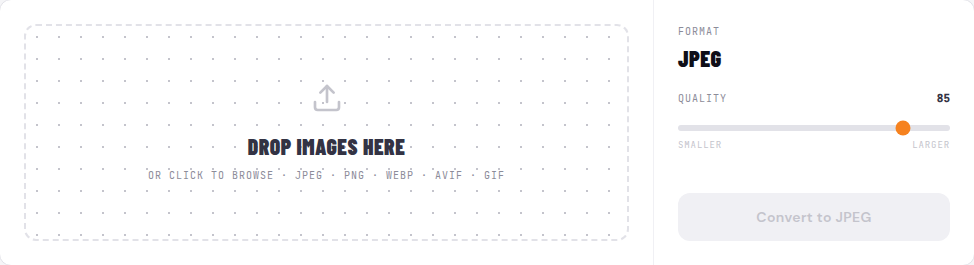
1. Open the converter
Go to converter.encodehive.com/webp-to-jpg in Edge, Chrome, or any browser. The page loads in a second - no signup, no popup, no cookie banner.
2. Drop your WebP onto the page

Drag a WebP from File Explorer onto the dashed box (“Drop images here”), or click it to open the file picker. To batch convert multiple WebP to JPG, select them all at once in the file picker - the converter queues every file.
3. Set the quality and click Convert to JPEG
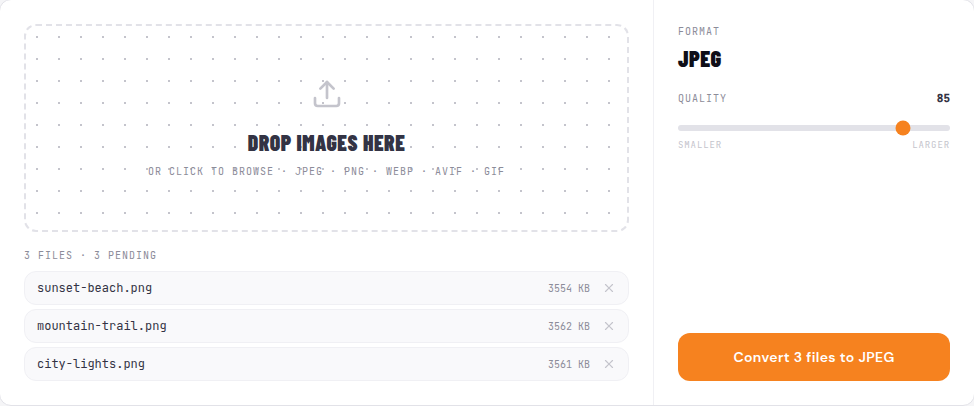
On the right you’ll see the output format - locked to JPEG on this page - and a Quality slider. It defaults to 85, which is visually lossless for almost any photo. Drag it toward Smaller for a tinier file, or toward Larger to preserve more detail. When you’re ready, click Convert to JPEG.
Conversion is near-instant because it’s a local encode using a WebAssembly JPEG codec - your file never leaves your PC.
4. Save the JPG
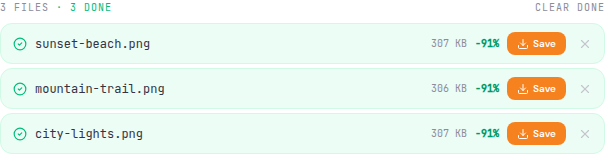
Each finished file shows its new size and a green badge showing how much smaller it got (for example -42%). Click the Save button to download the JPG to your Downloads folder. The original WebP is untouched.
Batch job finished? Click Save on each one, then hit Clear done to clean up the list.
Why not Photoshop (or Paint)?
Paint on Windows 11 can actually open WebP now and save as JPEG via File > Save as. But it handles one file at a time, and you have to repeat the whole process for every image. For a single file it’s fine. For anything more than that, dropping them all onto a web page and clicking once is significantly faster.
Photoshop can open WebP and export as JPEG, and it can batch-process with Image Processor. But:
- Most people don’t have it. Photoshop costs a monthly subscription. Installing it just to convert a few images is not worth it.
- It’s slower to set up. Even with a batch action, you have to open Photoshop, find the menu, configure the export settings. A browser converter is three clicks.
- It doesn’t need to be installed. The browser converter needs nothing but a browser you already have.
If someone asks “how to convert WebP to JPG in Photoshop,” they usually just want a fast, free answer - and this is it.
Platform guide
On Windows 10 and 11
Edge and Chrome both work. Drag the WebP from File Explorer onto the converter, set the quality, and click Convert to JPEG. No need for Paint, the Photos app, or any format-conversion utility. Batch converting a whole folder is the same process - select all the files in File Explorer and drop them at once.
On Mac
Open converter.encodehive.com/webp-to-jpg in Safari or Chrome. Drag the WebP from Finder, set quality, click Convert to JPEG, then Save. Mac Preview can also open WebP and export as JPEG via File > Export - but one file at a time only.
On Android
Open the page in Chrome, tap the drop zone to pick a WebP from your gallery or files, and tap Convert to JPEG. When it finishes, tap Save and the JPG lands in your Downloads folder. No app install needed.
On iPhone
Open the page in Safari, tap the drop zone, and pick a WebP from Files or Photos. Tap Convert to JPEG, then Save - iOS lets you save the JPG back to Files or into your Photos library directly.
Quality and transparency notes
Quality: The default of 85 is a good all-around setting. You won’t see a difference compared to the original on a typical photo. Drag down to 70 or 60 if you need a smaller file for a web upload; drag up to 90-95 if you want the closest possible match to the original.
Transparency: This is the main gotcha. WebP supports transparent backgrounds; JPG does not. If your WebP has transparency - a product photo with no background, a logo, a sticker - those transparent areas are filled with solid black when you convert. If that’s a problem, keep the WebP or convert to PNG instead, which supports transparency and opens in every modern app.
Related guides
FAQ
Frequently asked
How do I convert WebP to JPG on Windows 10 or 11?
Open converter.encodehive.com/webp-to-jpg in Edge or Chrome, drag your WebP file onto the drop zone, and click Convert to JPEG. The conversion runs entirely in your browser - nothing installs, nothing uploads. Works the same on Windows 10 and Windows 11.
How do I convert multiple WebP to JPG at once?
Drop all your WebP files onto the converter at once - it queues every file and converts them one after another. When they finish, click Save on each one, then hit Clear done to tidy the list. This is much faster than converting them one by one in Paint or any other app.
How do I convert WebP to JPG in Photoshop?
In Photoshop, open the WebP file, then go to File > Export > Export As and choose JPEG. But Photoshop is overkill for this - it costs a monthly subscription, and a free browser converter does the same job in fewer clicks with no install. If you don't already have Photoshop, there's no reason to get it just to convert WebP.
How do I convert WebP to JPG on Mac?
The same converter works on Mac. Open converter.encodehive.com/webp-to-jpg in Safari or Chrome, drag the WebP onto the drop zone, and click Convert to JPEG. Mac Preview can also open WebP files and export as JPEG via File > Export - but it handles only one file at a time.
How do I convert WebP to JPG on Android?
Open converter.encodehive.com/webp-to-jpg in Chrome on Android, tap the drop zone to pick a WebP from your gallery or files, and tap Convert to JPEG. When it finishes, tap Save - the JPG goes to your Downloads folder. No app install needed.
Does converting WebP to JPG lose quality?
A small amount of detail is discarded because JPG is lossy, but at the default quality of 85 you will not see a difference on a photo. WebP is also lossy (in its default mode), so you're not starting from a pristine original. The real trade-off is file size vs. compatibility - JPG is universally supported, which is the whole reason to convert.