Skip the reading
Open the PNG → WebP converter
No watermark, no upload, no account. Runs in your browser.
Every web project runs into the same question: save the image as WebP, PNG, or JPG? The formats overlap in obvious ways - they all display in a browser - but they make very different trade-offs around compression, transparency, and compatibility. Picking the wrong one means either bloated files or quality problems you have to fix later.
Here is a direct comparison and a simple set of rules so you can decide in under a minute.
TL;DR
- JPG - photos, no transparency needed, smallest size for photographic content.
- PNG - logos, icons, screenshots, transparency, lossless masters.
- WebP - the modern default for the web; smaller than both, supports transparency and animation.
- Need to switch? Convert free at converter.encodehive.com - runs in your browser, no upload.
Format comparison
| JPG | PNG | WebP | |
|---|---|---|---|
| Compression type | Lossy | Lossless | Lossy or lossless |
| Transparency | No | Yes | Yes |
| Animation | No | No (use APNG for that) | Yes |
| Typical size | Small | Large | Smallest |
| Browser / app support | Universal | Universal | All modern browsers; older desktop apps vary |
| Best for | Photos, gradients | Logos, icons, screenshots, transparency | Web images, modern pipelines |
When to use JPG
Use JPG when the image is a photo or has smooth gradients and you don’t need transparency. JPG’s lossy compression is tuned for photographic content - it can cut a raw PNG export down by 60-80% with no visible loss at quality 85. Good fits:
- Product photos, hero images, blog post illustrations
- Screenshots of photos or rendered 3D scenes
- Any image you’re emailing or uploading where size matters and the background is solid
Avoid JPG for logos, line art, text-heavy screenshots, or anything with a transparent background. The compression algorithm smears hard edges and the format has no alpha channel - transparent areas become a solid fill.
When to use PNG
Use PNG when quality, sharpness, or transparency can’t be compromised. PNG is lossless - every pixel is preserved exactly - which makes it the right choice for:
- Logos and icons with crisp edges and flat colors
- UI screenshots where text must stay sharp
- Images with transparent or semi-transparent areas (a product cut-out, a sticker, an icon with a soft shadow)
- Lossless master files you’ll edit further
The trade-off is size: a PNG of the same photo is often 3-5x larger than a JPG. That’s fine for a master file; it’s a problem for a web page that needs to load fast.
When to use WebP
WebP is the modern default for the web. It does everything the other two do and does it smaller:
- Lossy WebP beats JPG on photos - roughly 25-35% smaller at the same perceptual quality.
- Lossless WebP beats PNG on graphics - around 25% smaller for the same pixel-perfect output.
- It supports transparency, so it can replace PNG in most web contexts.
- It supports animation, so it can replace GIF (with much better compression).
The only real reason to stick with JPG or PNG over WebP is legacy tool support. Older versions of Photoshop, some Windows apps, and certain CMS media pipelines still can’t read WebP. For anything you control end-to-end - a website, a web app, a design export - WebP is the right call.
Converting between them
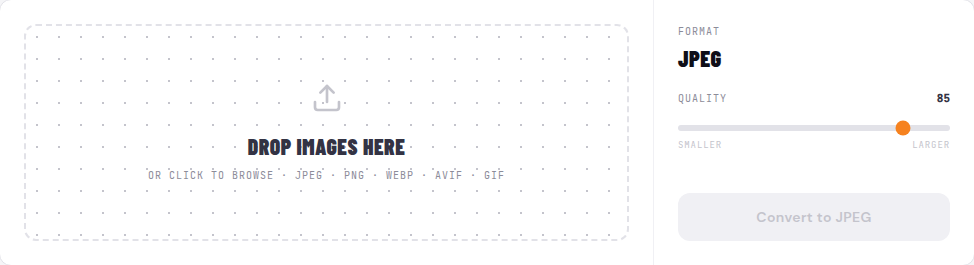
All four common conversions run free in your browser at converter.encodehive.com - no upload, no account, no watermark. Drop one file or a whole batch and the converter queues them all.
- PNG to WebP - shrink lossless PNG exports for the web: converter.encodehive.com/png-to-webp
- PNG to JPG - turn lossless screenshots and graphics into smaller JPGs: converter.encodehive.com/png-to-jpg
- WebP to PNG - convert WebP to lossless PNG for editing or legacy tools: converter.encodehive.com/webp-to-png
- WebP to JPG - produce a widely compatible JPEG from a WebP source: converter.encodehive.com/webp-to-jpg
Each page shows a Quality slider (default 85) for lossy conversions and a green -NN% badge when conversion is done so you can see exactly how much smaller the file got. Click Save to download - the original is untouched.
Because the conversion runs in WebAssembly in your browser, you can go offline after the page loads and it still works. Nothing touches a server.
A note on lossless conversions
Converting from a lossless source (PNG or lossless WebP) to another lossless format (PNG or lossless WebP) is genuinely loss-free - the pixel values are identical. Converting a lossy source (JPG or lossy WebP) to a lossless format is lossless from that point forward, but any quality already discarded when the original was compressed cannot be recovered. If you start with a high-quality JPG and need PNG, the result will be accurate - just not magically sharper than the source.
Related guides
FAQ
Frequently asked
WebP vs PNG vs JPG - which image format should I use?
Use JPG for photos where file size matters and you don't need transparency. Use PNG for logos, icons, screenshots, or any image with a transparent background - it's lossless and keeps sharp edges crisp. Use WebP as the modern default for web images: it's smaller than both JPG and PNG, supports transparency, and can animate like GIF. The only reason to avoid WebP is legacy tool support - some older desktop apps still can't open it.
Is WebP better than PNG for lossless images?
Usually yes - WebP lossless is typically 25-35% smaller than PNG for the same pixel-perfect quality. However, PNG has near-universal support in every app, OS, and tool. If you need to share the file with someone who might open it in an older program, PNG is the safer pick. For web delivery where you control the environment, WebP lossless is the better choice.
WebP to PNG or JPG - which should I convert to? (reddit-style)
Convert WebP to PNG if the image has transparency or sharp edges and you need to edit or share it with a tool that doesn't support WebP. Convert WebP to JPG if it's a photo, you don't need transparency, and file size matters. JPG will be slightly smaller than PNG for photographic content; PNG will be larger but pixel-perfect with no lossy artifacts.
Does PNG to JPG lose quality?
JPG is a lossy format, so some detail is discarded - but at the default quality of 85 the loss is imperceptible on photos. PNG is lossless; the real trade is size vs. perfect fidelity. For photos, JPG is usually 60-80% smaller with no visible difference. For screenshots with text or logos with sharp edges, PNG actually looks cleaner because JPG compression smears hard edges.
Is WebP to PNG lossless?
It depends on the source. If the original WebP was encoded as lossless, converting it to PNG produces a pixel-perfect result - no quality loss. If the source WebP was lossy (the more common case for web images), the PNG is just a lossless snapshot of already-compressed pixels. You cannot recover detail that was discarded when the WebP was first created.
Which format is smallest - WebP, PNG, or JPG?
For photos, WebP lossy is typically the smallest (roughly 25-35% smaller than JPG at equivalent visual quality). JPG comes second. PNG is the largest for photos because it's lossless. For graphics with flat colors or sharp edges, PNG and WebP lossless are competitive, and both beat JPG (which adds compression artifacts on hard edges).