Search “image converter” and almost every result does the same thing: it uploads your photo to a server, converts it there, and hands it back - often with a watermark, a file-size cap, or an account wall. For a random screenshot that’s fine. For personal photos, ID scans, documents, or anything you’d rather not leave on a stranger’s machine, it’s a quiet privacy problem.
EncodeHive is a free online image converter that never uploads your files. Every conversion runs inside your browser tab, on your own device. Same convenience as a web tool, none of the upload.
TL;DR
- Open converter.encodehive.com in any browser.
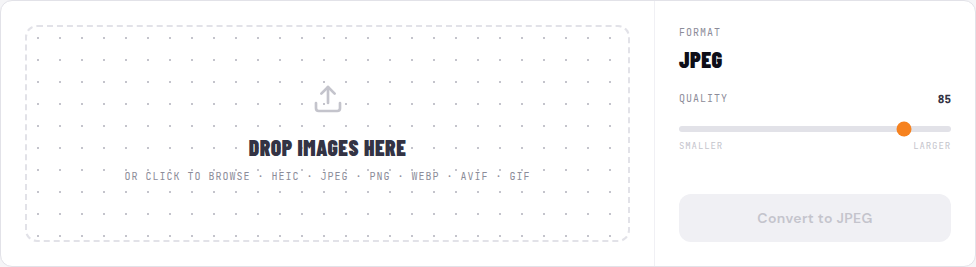
- Drop your image - JPG, PNG, WebP, AVIF, HEIC, or GIF (or several to batch convert).
- Choose the output format and leave quality at 85, then click Convert.
- Click Save on each finished file.
No upload, no account, no watermark, completely free. The conversion runs on your own CPU.
What “privacy-friendly” actually means here
Most “free online image converters” are server-side: you upload, their machine converts, you download. Your file now sits on infrastructure you don’t control, subject to whatever logging and retention policy they run - and exposed if they’re ever breached.
EncodeHive is client-side. The picture data is read from your disk by the browser and converted by a WebAssembly codec running in the page. No network request ever carries your image off the device. You can prove it: load the page, turn on Airplane Mode, then convert an image. It still works - which is impossible if the conversion were happening on a remote server.
Upload-based vs in-browser image converters
| Upload-based converter | In-browser (EncodeHive) | |
|---|---|---|
| Privacy | Image sent to a third-party server | Image never leaves your device |
| Works offline | No | Yes, once the page has loaded |
| Watermarks / ads | Common on free tiers | None |
| File size limits | Often capped on free tiers | Limited only by your device’s memory |
| Account required | Often, for batch or larger files | Never |
| Cost | ”Free” with upsells | Free, no upsell |
The one honest tradeoff: a server can throw fast hardware at a multi-gigabyte file. For normal photos and screenshots - the vast majority of conversions - your own device is plenty, and the privacy win is total.
Formats you can convert
The converter handles the formats people actually search for:
- HEIC to JPG - open iPhone photos anywhere (Windows guide, Android guide)
- PNG to JPG - shrink screenshots and shareable images (Mac guide)
- JPG / PNG to WebP - smaller files for the web (batch guide)
- WebP to JPG / PNG - fix images that won’t open in older apps (WebP to JPG)
- AVIF - the newest, smallest format for modern browsers (AVIF vs WebP)
HEIC and GIF are accepted as input; JPEG, PNG, WebP, and AVIF are available as output. (HEIC is Apple’s camera format, so it’s input-only.)
Convert an image, step by step
1. Open the converter
Go to converter.encodehive.com in Chrome, Safari, Edge, Firefox - any modern browser, on desktop or phone. The page loads in about a second. No signup prompt, no cookie banner.
2. Drop your image

Drag an image onto the drop zone, or click it to browse. To batch convert, select several images at once - the converter queues them all. Watch your browser’s network tab in DevTools if you want proof: no upload request appears.
3. Choose format and quality
Pick your output format - JPEG, PNG, WebP, or AVIF - and set the Quality slider. It defaults to 85, which is visually lossless for almost any photo. Drag toward Smaller for a tinier file or Larger to keep more detail, then click Convert.
The first conversion takes a moment longer while the codec loads; after that it’s near-instant, even for a batch.
4. Save the result
Each finished image shows its new size and a badge with how much it changed. Click Save to download it. The original file is untouched - the output is a brand-new file in your downloads folder. Converted a batch? Save each one, then hit Clear done to tidy the list.
When a server-side converter still makes sense
To be fair: if you’re converting a single enormous image on a low-RAM phone, an upload-based tool can offload that to fast hardware. And if the image isn’t sensitive, privacy isn’t a factor. For everything else - personal photos, documents, client work, or just not wanting your files cached on someone else’s server - an in-browser converter is the better default.
Related guides
- Convert video without uploading - same private, in-browser model for video
- Batch convert images to WebP - drop many files at once, all processed locally
- How to convert HEIC to JPG on Windows - open iPhone photos without a paid codec
- AVIF vs WebP - which modern format to convert to
FAQ
Frequently asked
What is the best free online image converter?
The best free image converter for everyday use is one that is fast, has no watermark or account, and keeps your files private. EncodeHive converts JPG, PNG, WebP, AVIF, HEIC, and GIF entirely in your browser - so it is free with no sign-up, no watermark, and your images are never uploaded to a server. Open converter.encodehive.com, drop an image, pick a format, and click Convert.
Is it safe to convert images online?
It depends on the converter. Most online converters upload your image to a remote server, where it can be cached, logged, or retained after you leave. EncodeHive never uploads anything - the conversion runs inside your browser using WebAssembly, so it is as safe as running an app on your own computer. You can verify it by turning on Airplane Mode after the page loads; conversion still works.
How do I convert images without uploading them?
Use a converter that runs in the browser instead of on a server. Open converter.encodehive.com, drag your image onto the drop zone, choose an output format, and click Convert. The browser reads the file from your disk and a WebAssembly codec converts it locally - no network request carries your image anywhere.
What image formats can I convert?
You can convert between JPEG (JPG), PNG, WebP, and AVIF, and convert HEIC (iPhone photos) and GIF as input. HEIC is input-only since it is an Apple camera format. Common jobs include HEIC to JPG, PNG to JPG, JPG to WebP, PNG to WebP, and WebP to PNG - all run locally in your browser.
Does the image converter work offline?
Yes, once the page has loaded. The WebAssembly codecs download once on your first visit; after that, conversion works with no internet connection. Load the page, switch to Airplane Mode, and convert an image to see for yourself.
Is there a file size limit?
There is no server-imposed cap because no server is involved. The practical limit is your device's memory - desktop browsers comfortably handle very large images, while mobile browsers are tighter (roughly 1-2 GB per tab).
Is it really free - no watermark, no account, no ads?
Yes. There is no account, no watermark stamped on your images, no usage cap, and no ads injected into your output. The tool is funded by the site, not by monetizing your files.
How do I batch convert multiple images at once?
Drop all your images onto the converter at the same time - it queues every file and converts them one after another, all locally. When they finish, click Save on each, or use your browser's bulk download.